Select Brochures For Brochure Rack
Follow
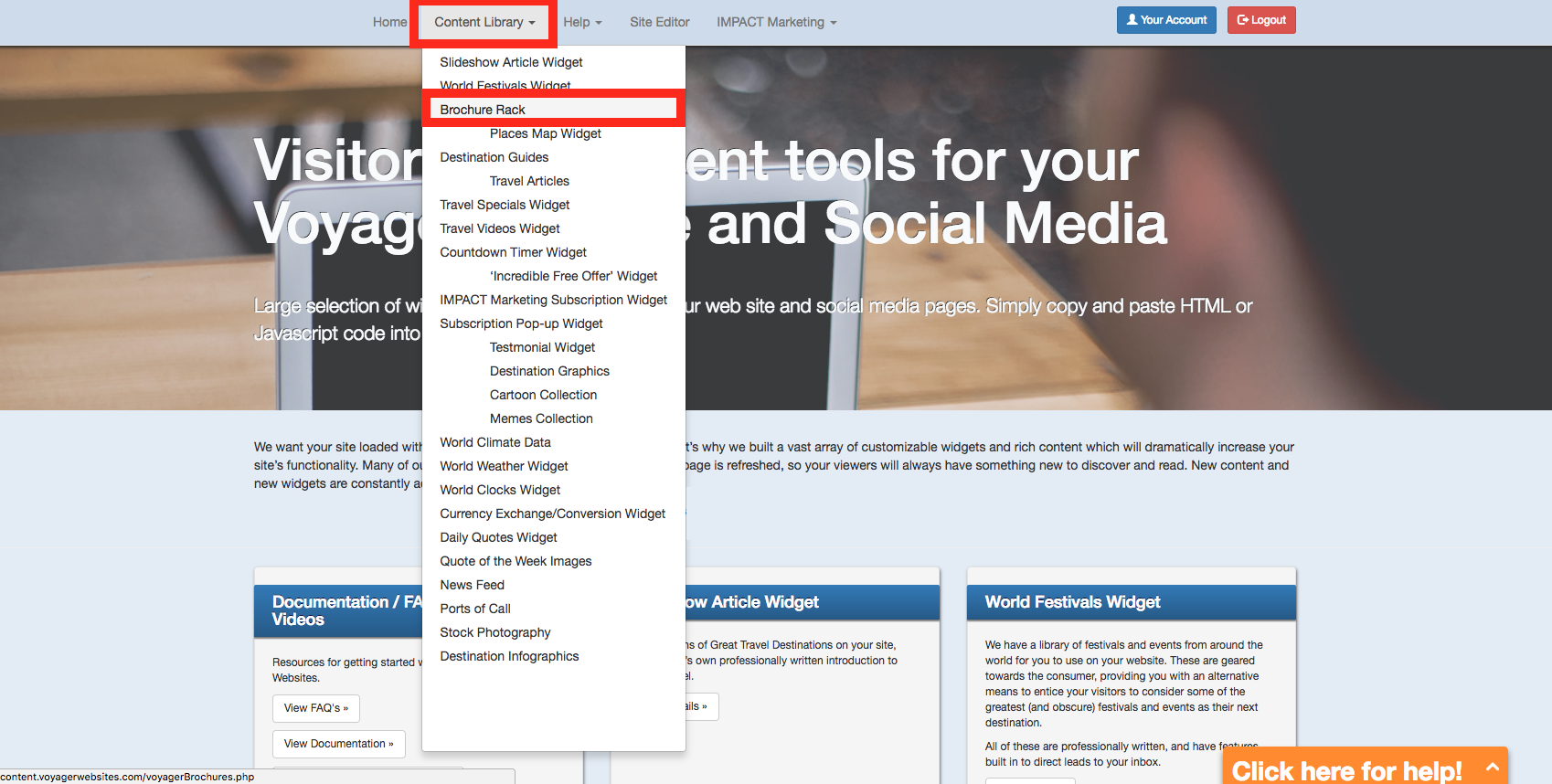
- Visit the Content Library and login into your account.
- Click on Content Library and select Brochure Rack.
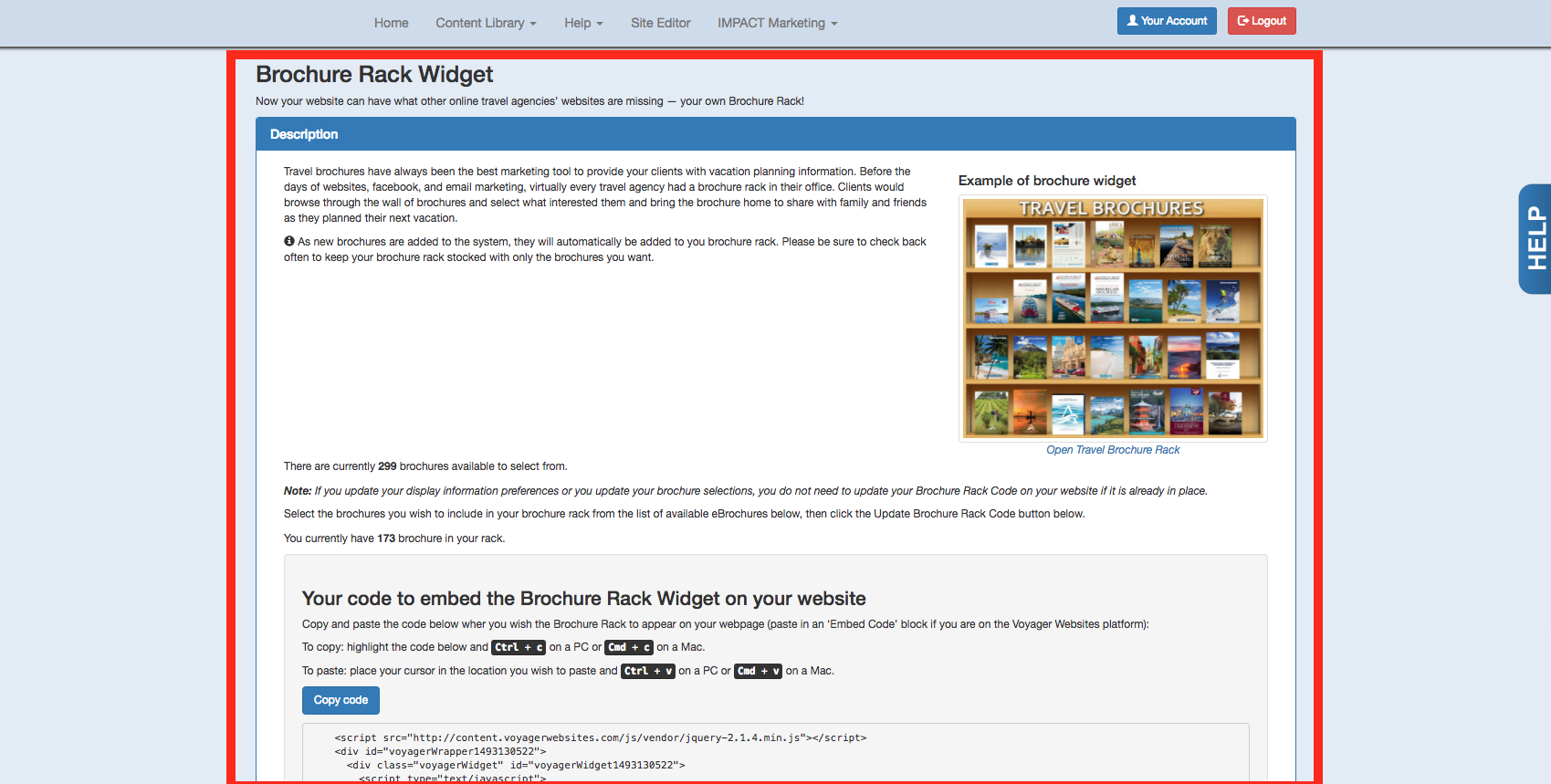
- This will take you to the Brochure Rack widget.
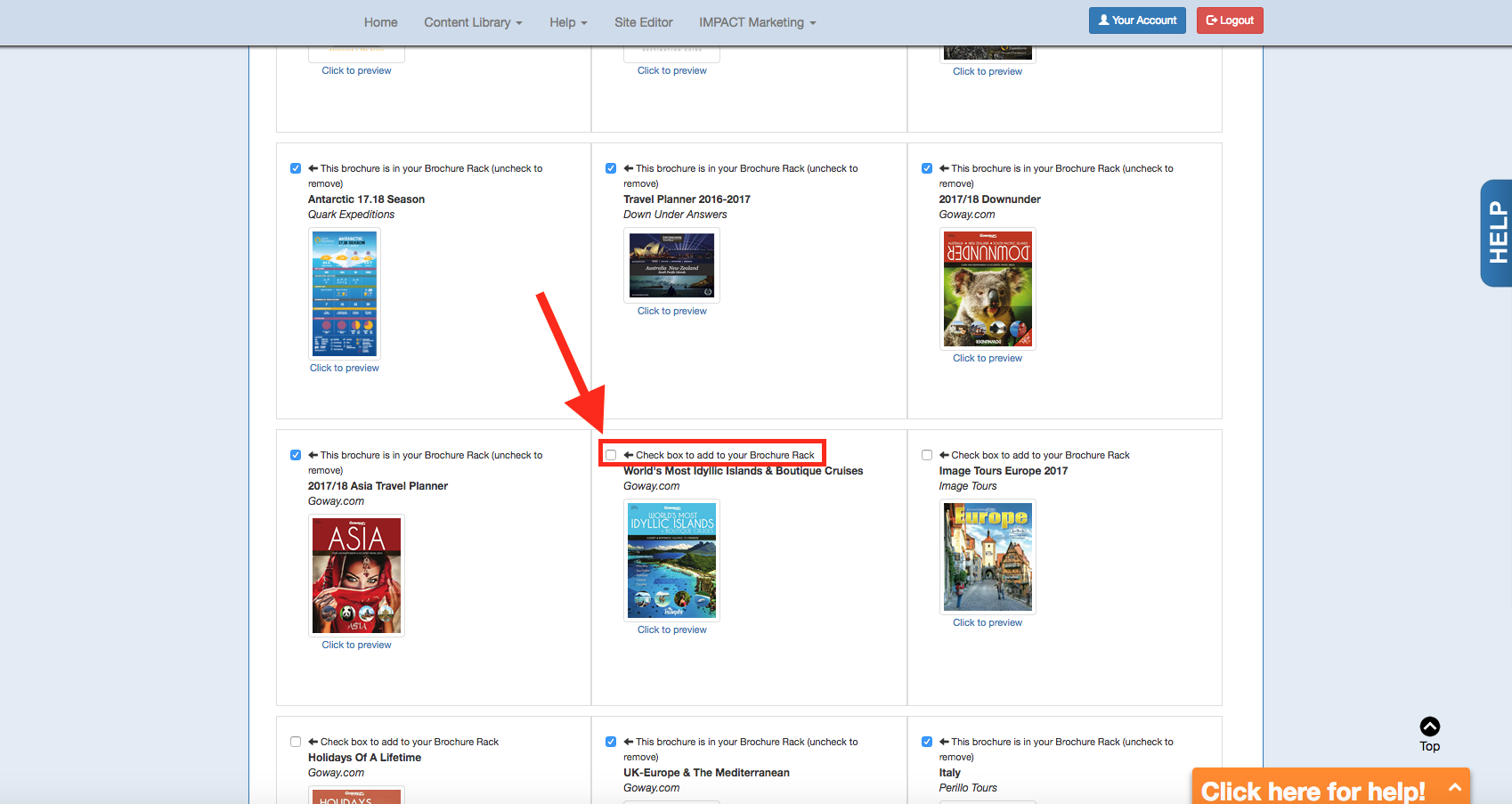
- Scroll down until you see a list of brochures.
- Select a brochure by clicking on the small box next to the description: Check box to add to your Brochure Rack.
- A blue box with a white checkmark indicates you have selected the brochure to put in your brochure rack.
- An unchecked box indicates the brochure is not in your brochure rack.
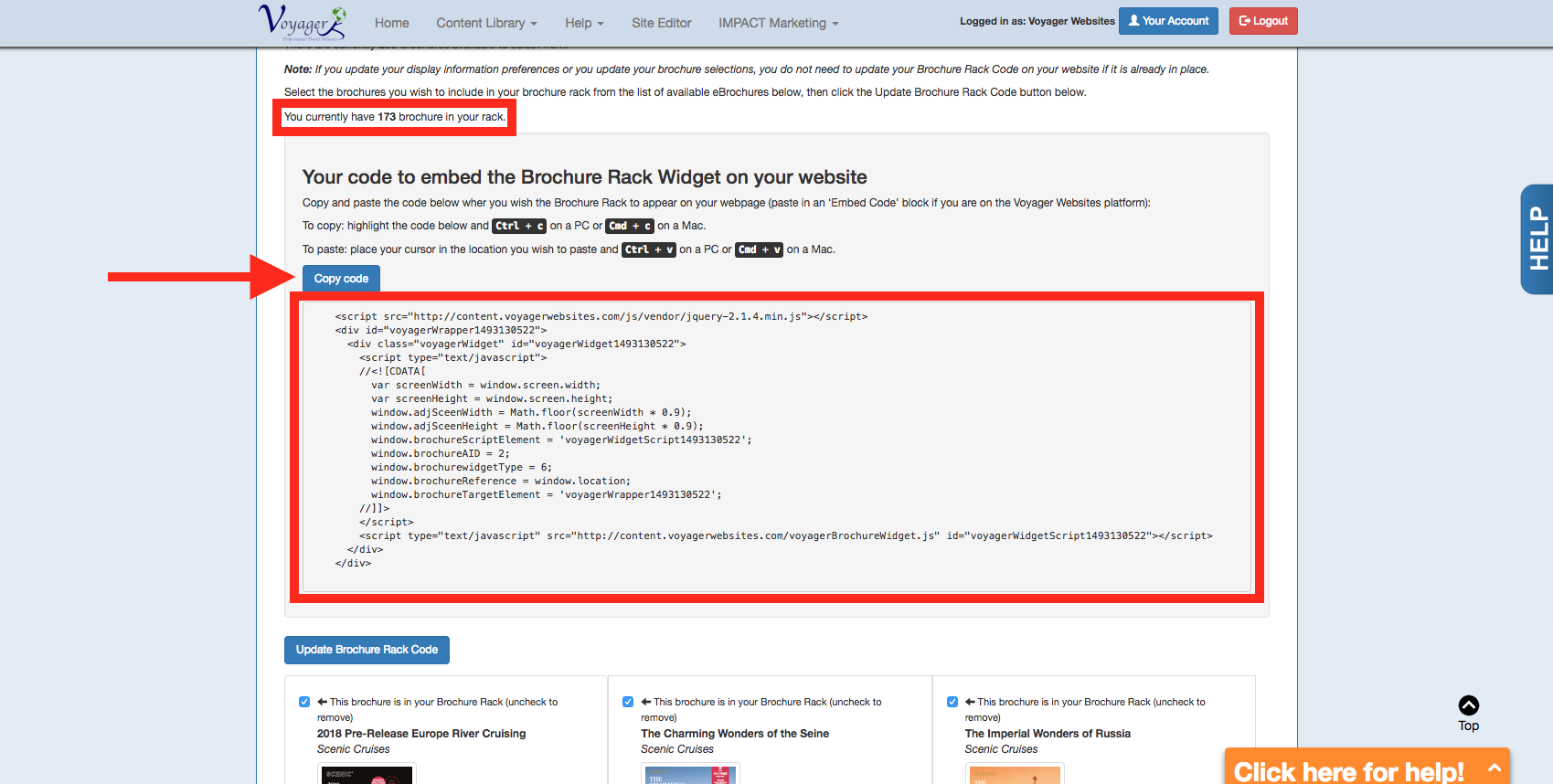
- After you've selected your brochures, click the blue Update Brochure Rack Code button.
- You can then click the Copy code button to copy the brochure rack code to paste on your website.

Comments
0 comments
Article is closed for comments.