
- Click on your name in the upper right corner of your Dashboard.
- Under Workspace Menu, select Brand Settings.
- The system will automatically bring you to the Linked Accounts tab in your Brand Settings. Click Add New at the center of the page.
- Select the YouTube tile.
- Log in to your desired YouTube account.
- Click Allow when prompted to give Cloud Campaign access.
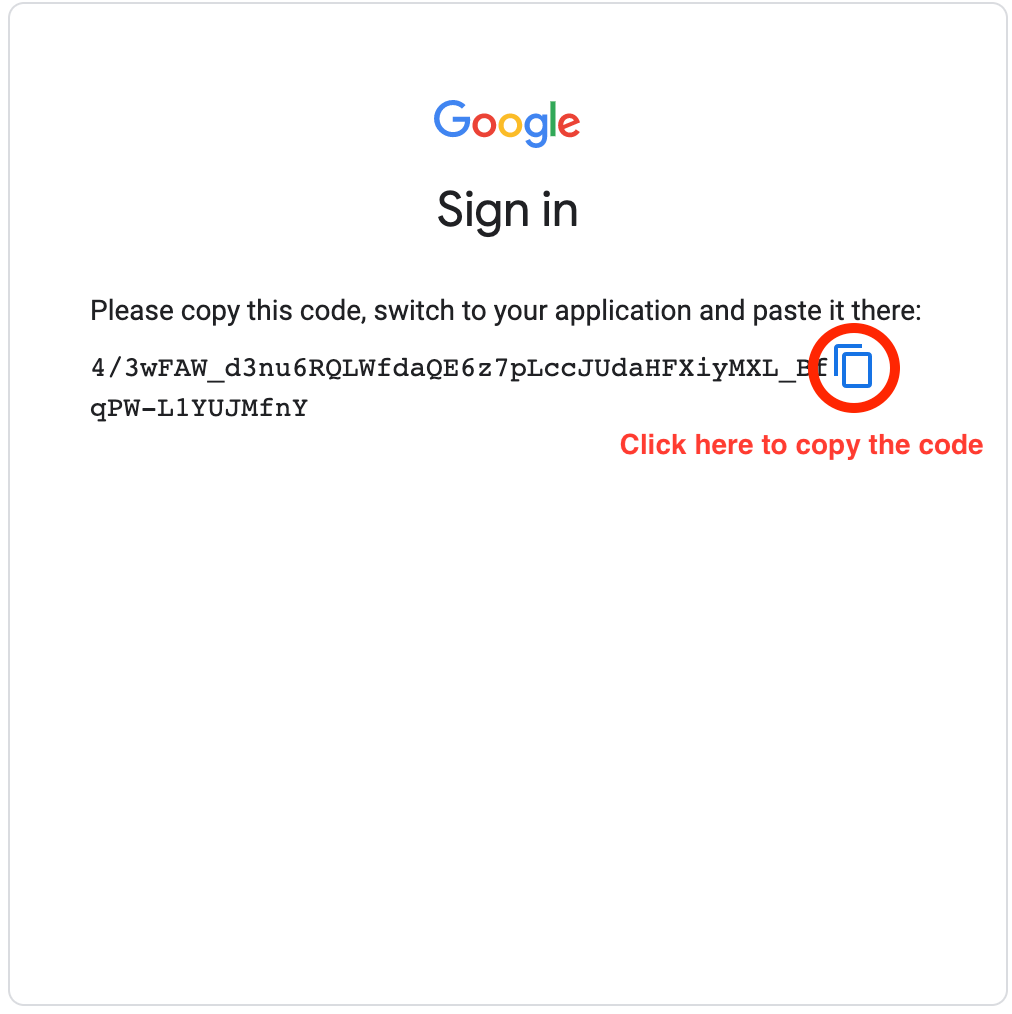
- Copy the code that appears and go back to your Social Media Manager Dashboard.
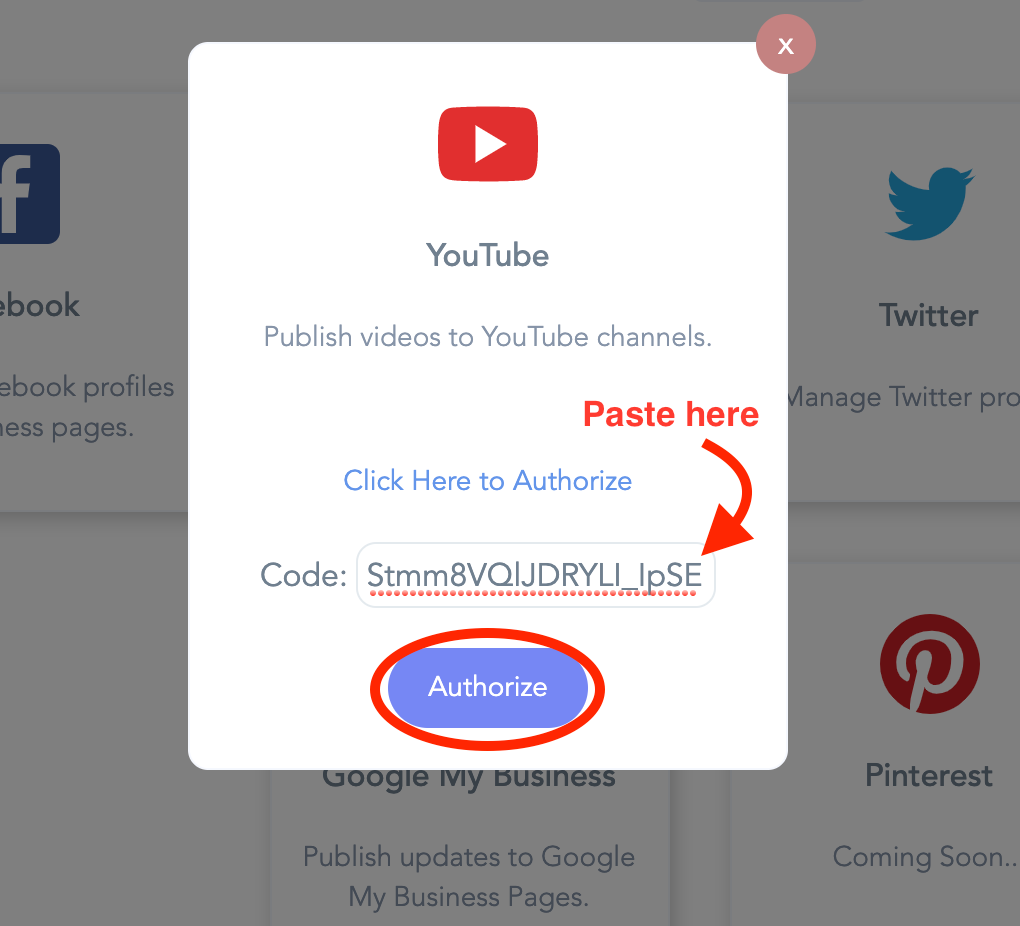
- Paste the code and click Authorize.

You should now see the connected YouTube account(s) in your Linked Accounts under Existing.
Comments
0 comments
Article is closed for comments.